WEBTTD FIELD GUIDE
The goal
The goal
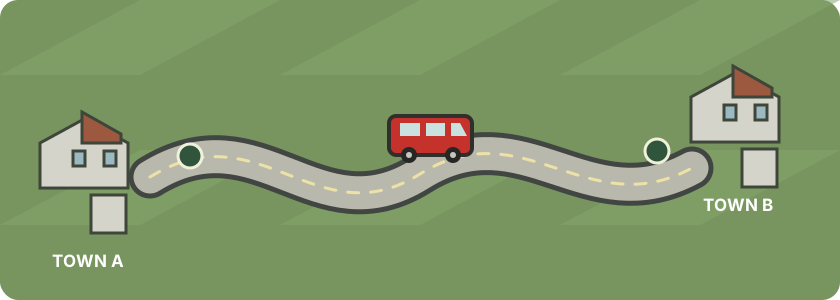
Create a road connection between two towns and run a bus between a stop in each town. If roads already connect the towns, you may only need to add the stops and service. If not, build a short, connected link and check the estimated cost before confirming construction.
Step by step
- Choose two nearby towns. Explore with right-drag and the mouse wheel, or open the Town directory. A short first route is easier to afford and check. Look for roads that already lead toward the other town.
- Build any missing road. Open Road construction on the toolbar. Choose Auto-direction road or one of the Build road along … tools, then drag from a road end toward the next connected section. Follow the preview and cost estimate. Existing roads can save construction money; avoid unnecessary detours and landscaping.
- Build a bus stop in each town. In the same construction window, choose Build bus station and place a stop beside a road near the town’s houses. Build at least two matching stops so a route has somewhere to pick up and drop off passengers.
- Build a road vehicle depot. Choose Build road vehicle depot and place it beside a connected road. A depot is where you buy and manage road vehicles.
- Buy a bus. Open the depot and choose New Vehicles. Pick an available passenger bus that you can afford and buy it. The vehicle’s details show its purchase price, capacity, and running cost.
- Create the route. Open Road vehicles on the toolbar, then List of road routes, and choose New route. Add the two bus stops in the order you want the bus to visit them, then choose Create route.
- Assign and start the bus. Open the bus, choose Assign a route, select the route you created, and choose Assign this route. Start the bus from its vehicle window.
Check that it is working
Passengers need to be within a stop’s local service area. Click a stop to inspect its details; the station window shows what it serves and what is waiting. The bus must visit both stops in its assigned route. Once it is running, watch its status and profit in the vehicle window and check the Company finances window for the company’s overall cash flow.
Road construction, stops, depots, vehicles, and their running costs all use company money. You do not need to own every road you travel on, but access to another company’s infrastructure may have conditions or rent. Check the route and access details before relying on someone else’s network.
If something goes wrong
- The route editor cannot find a stop: make sure it is a road stop, not a rail station, and that it belongs to or is accessible by your company.
- The bus does not move: check that it is assigned to a road route, that the route has at least two stops, and that connected roads lead between them.
- The bus carries few passengers: try stops closer to town houses or a more useful pair of towns. A route is not guaranteed to be profitable just because it is running.